
If you sell food items on Shopify, displaying the Nutri-Score label helps customers make healthier choices instantly.
Instead of paying for premium apps, you can add this visual badge directly to your product pages for free.
In this guide, we provide the exact step-by-step method and ready-to-use Liquid code to display the Nutri-Score scale without installing any third-party apps.
What is nutriscore?
Nutri-Score is a front-of-pack labeling system used primarily across European countries to help consumers quickly assess the nutritional quality of food products. It uses a color-coded, letter-based scale ranging from A (dark green, indicating the highest nutritional quality) to E (red, indicating the lowest nutritional quality).
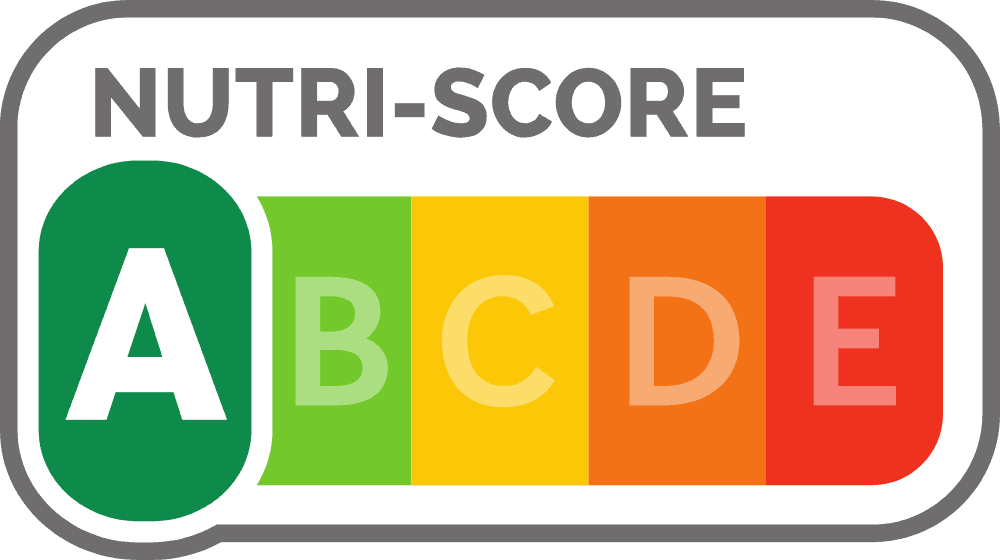
The algorithm calculates this grade by balancing favorable nutrients (like fiber and protein) against less favorable ones (like calories, saturated fats, and sugars).
Display nutriscore in Shopify using liquid code
Step 1: Create a meta field
First, you need to create a place in Shopify to store the grade for each product.
Go to Settings > Metafields and metaobjects > Products. Click Add definition.
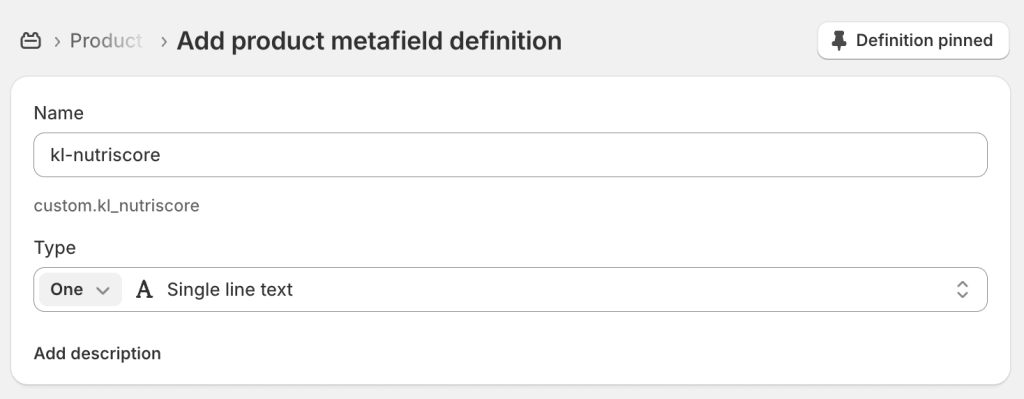
- Set the Name as: kl-nutriscore
- Set the Type as: Single line text
Click Save
Step 2: Add liquid code in theme
Now, let’s output the visual badge on your storefront.
Go to Online Store > Themes. Click the Edit theme button.
In the theme editor, go to your product page template. Click Add section or Add block (depending on your theme), choose Custom Liquid, and paste the following code:
{%- liquid
  assign score = product.metafields.custom.kl_nutriscore.value | upcase

  # Fallback to 'A' if previewing in the theme editor and no metafield value is set
  if score == blank and request.design_mode
    assign score = 'A'
    assign is_preview_mode = true
  endif
-%}

{%- if score != blank -%}
  <div class="kl-nutriscore-wrapper">
    <div class="kl-nutriscore-header">
      <span class="kl-nutriscore-title">
        Nutri-Score
        {%- if is_preview_mode -%}
          <span class="kl-nutriscore-preview-badge" title="Showing preview grade 'A' because no metafield value is assigned yet.">Editor Preview</span>
        {%- endif -%}
      </span>
    </div>

    <div class="kl-nutriscore-badges">
      <div class="kl-nutriscore-badge grade-a {% if score == 'A' %}active{% endif %}">
        <span class="letter">A</span>
      </div>
      <div class="kl-nutriscore-badge grade-b {% if score == 'B' %}active{% endif %}">
        <span class="letter">B</span>
      </div>
      <div class="kl-nutriscore-badge grade-c {% if score == 'C' %}active{% endif %}">
        <span class="letter">C</span>
      </div>
      <div class="kl-nutriscore-badge grade-d {% if score == 'D' %}active{% endif %}">
        <span class="letter">D</span>
      </div>
      <div class="kl-nutriscore-badge grade-e {% if score == 'E' %}active{% endif %}">
        <span class="letter">E</span>
      </div>
    </div>
  </div>

  <style>
    .kl-nutriscore-wrapper {
      margin: 16px 0;
      font-family: inherit;
    }
    .kl-nutriscore-header {
      display: flex;
      align-items: center;
      gap: 8px;
      margin-bottom: 8px;
      flex-wrap: wrap;
    }
    .kl-nutriscore-title {
      font-size: 13px;
      font-weight: 700;
      letter-spacing: 0.05em;
      text-transform: uppercase;
      color: rgba(var(--color-foreground), 0.8);
      display: inline-flex;
      align-items: center;
      gap: 8px;
    }
    .kl-nutriscore-preview-badge {
      font-size: 10px;
      font-weight: 500;
      text-transform: none;
      letter-spacing: normal;
      background: rgba(var(--color-foreground), 0.08);
      color: rgba(var(--color-foreground), 0.6);
      padding: 1px 6px;
      border-radius: 4px;
    }
    .kl-nutriscore-badges {
      display: inline-flex;
      gap: 5px;
      align-items: stretch;
      background: rgba(var(--color-foreground), 0.04);
      padding: 4px;
      border-radius: 8px;
      border: 1px solid rgba(var(--color-foreground), 0.08);
    }
    .kl-nutriscore-badge {
      width: 40px;
      height: 34px;
      display: flex;
      align-items: center;
      justify-content: center;
      font-weight: 800;
      font-size: 15px;
      color: #ffffff;
      opacity: 0.25;
      border-radius: 6px;
      transition: all 0.25s cubic-bezier(0.16, 1, 0.3, 1);
    }
    .kl-nutriscore-badge .letter {
      transition: transform 0.25s ease;
    }

    /* Official European Nutri-Score Color Palette */
    .kl-nutriscore-badge.grade-a { background-color: #038141; }
    .kl-nutriscore-badge.grade-b { background-color: #85BB2F; }
    .kl-nutriscore-badge.grade-c { background-color: #FECB02; color: #111111; }
    .kl-nutriscore-badge.grade-d { background-color: #EE8100; }
    .kl-nutriscore-badge.grade-e { background-color: #E63E11; }

    /* Active Highlighted State */
    .kl-nutriscore-badge.active {
      opacity: 1;
      transform: scale(1.08);
      box-shadow: 0 4px 12px rgba(0, 0, 0, 0.12);
      z-index: 2;
    }
    .kl-nutriscore-badge.active .letter {
      transform: scale(1.05);
    }
  </style>
{%- endif -%}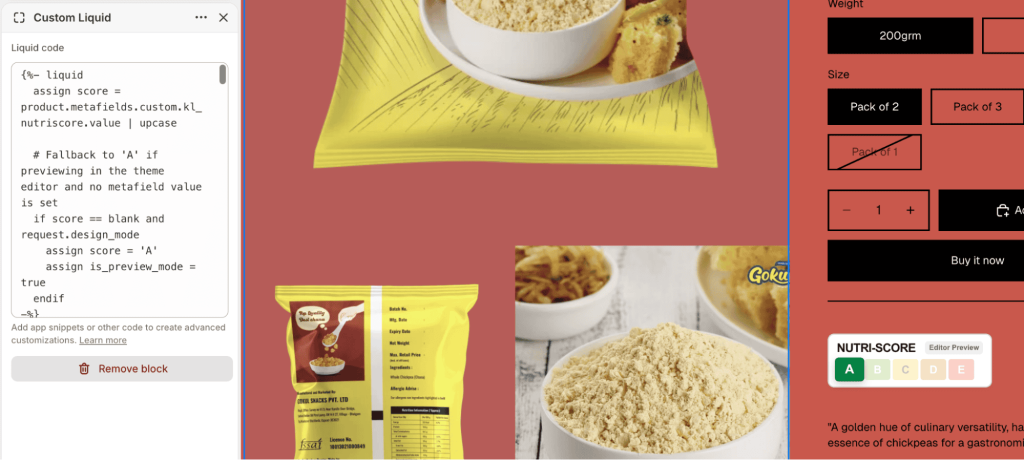
Then Save the changes.
Step 3: Assign scores to products
Now, to add the nutriscore to any product, simply go to Products > Edit the product. Scroll down to the Metafields section, find the kl-nutriscore field, and assign the appropriate score (A, B, C, D, or E).
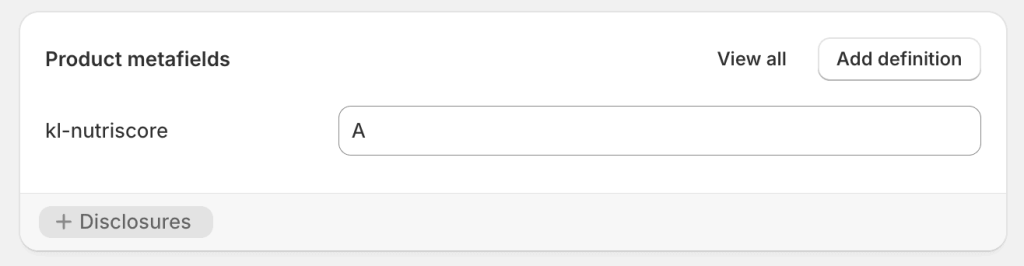
Click Save.
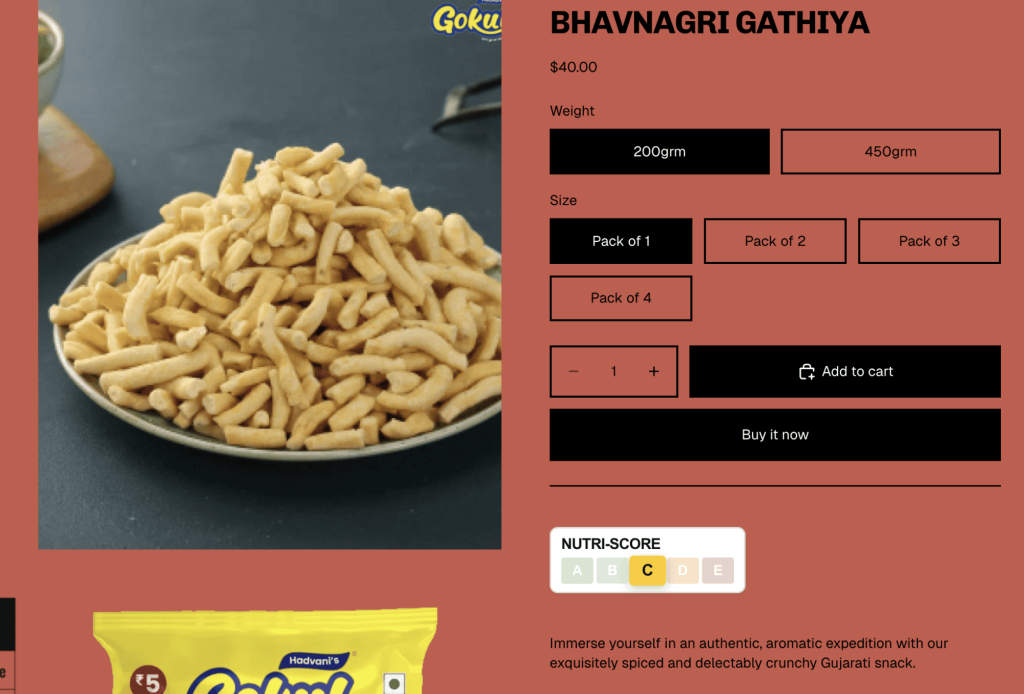
Here’s what the nutriscore looks like on the product page:
Bonus: How to display nutrition facts on product pages?
While the Nutri-Score provides a quick visual summary, some food merchants also need to display a detailed, traditional nutrition facts panel (calories, total fat, sodium, carbs, protein, etc.) You can technically do this by creating multiple individual metafields for every single nutrient and building a complex HTML table in a Custom Liquid block. However, this is incredibly tedious to manage on a per-product basis.
For full, accurate nutrition panels, using a specialized nutrition facts app (like KL – Nutrition Facts Label, which handles nutrition data natively) is highly recommended to save time and ensure formatting consistency.
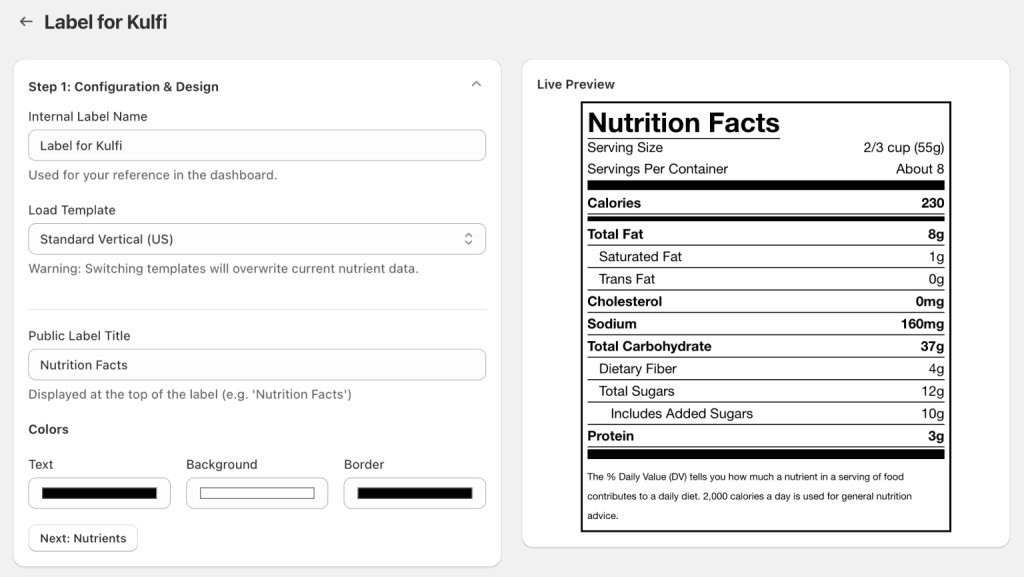
You can learn more about adding nutrition facts labels to Shopify.
FAQs
Is it mandatory to display nutriscore on product pages?
No, Nutri-Score is a voluntary labeling system. However, it is strongly supported by health authorities in several European countries (such as France, Germany, Belgium, and Spain). Because consumers are actively looking for this label to make quick purchasing decisions, displaying it can give you a significant competitive advantage and build brand trust.
How to change the nutriscore section title?
In the Liquid code provided in Step 2, look for this specific line of code near the top: Nutri-Score Simply change the text inside the <span> tags to your preferred title, such as “Nutritional Grade” or “Health Score,” and save the file.
Why use custom code instead of a nutriscore app?
Using custom Liquid code keeps your Shopify store lightweight. Many third-party apps inject external JavaScript and CSS files into your theme, which can slow down your page load speed, hurt your Core Web Vitals, and negatively impact your SEO. By pasting this standalone code snippet, you get a fast, beautiful, app-free solution that you completely own and control.